Basic Interface
This page is a visual and practical guide to the OpenHCS user interface. It is designed for biologists and other non-technical users who want to quickly understand how to navigate and use the main features of OpenHCS. Use this guide as both a quick reference and a step-by-step introduction.
Note: Clicking the “?” icon next to most OpenHCS features will provide a description of that feature
Main Window Overview
The main window that opens when you launch OpenHCS.
Main Window Overview.
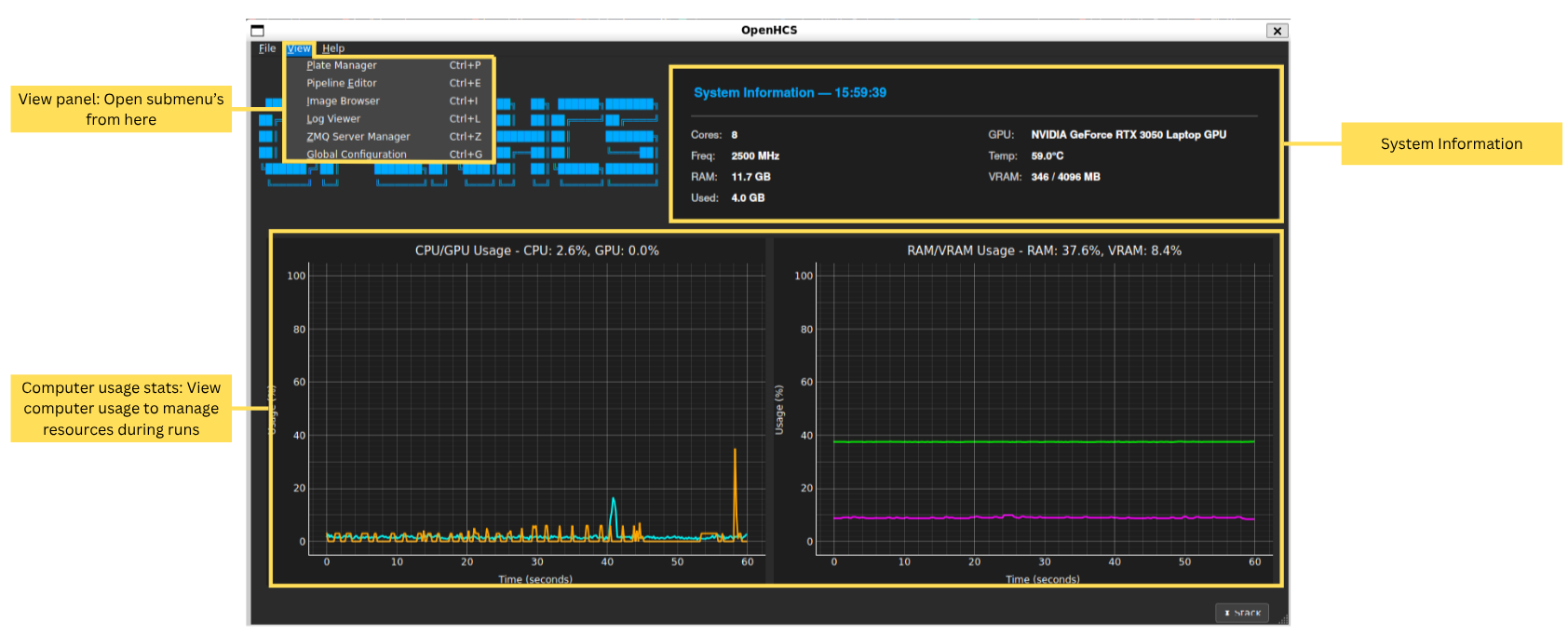
Tip: OpenHCS is designed to be efficient in performance and memory usage. If your computer is struggling and these graphs showcase high usage, something might be wrong.
Plate Manager
The Plate Manager helps you organize and view your experimental plates and wells.
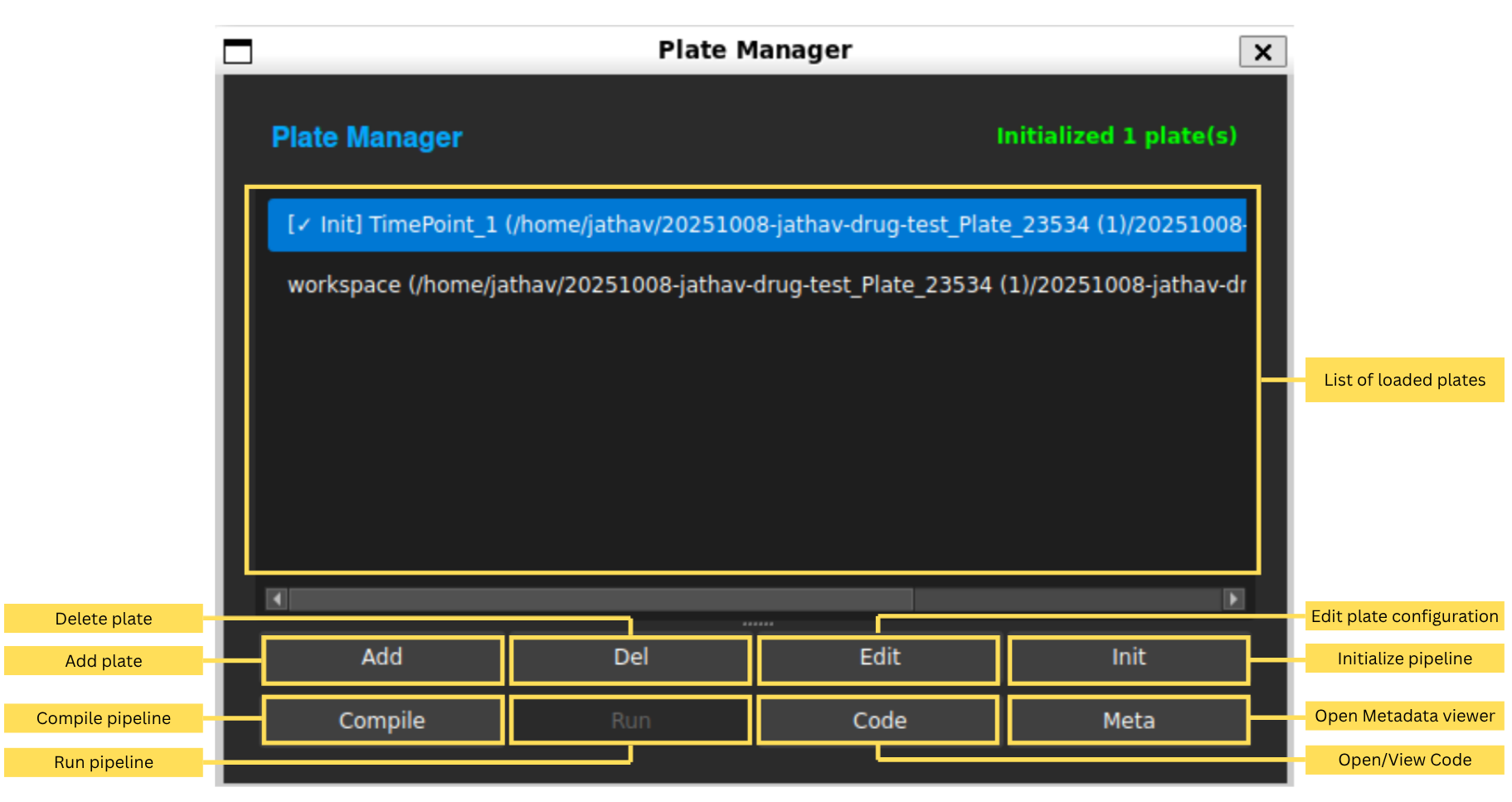
Note: Options that can’t be used at that moment are greyed out. For example, you can’t compile a pipeline if you don’t have any steps in it yet.
Pipeline Editor
The Pipeline Editor is where you build and customize your analysis workflows. It shows the pipeline for the currently selected plate.
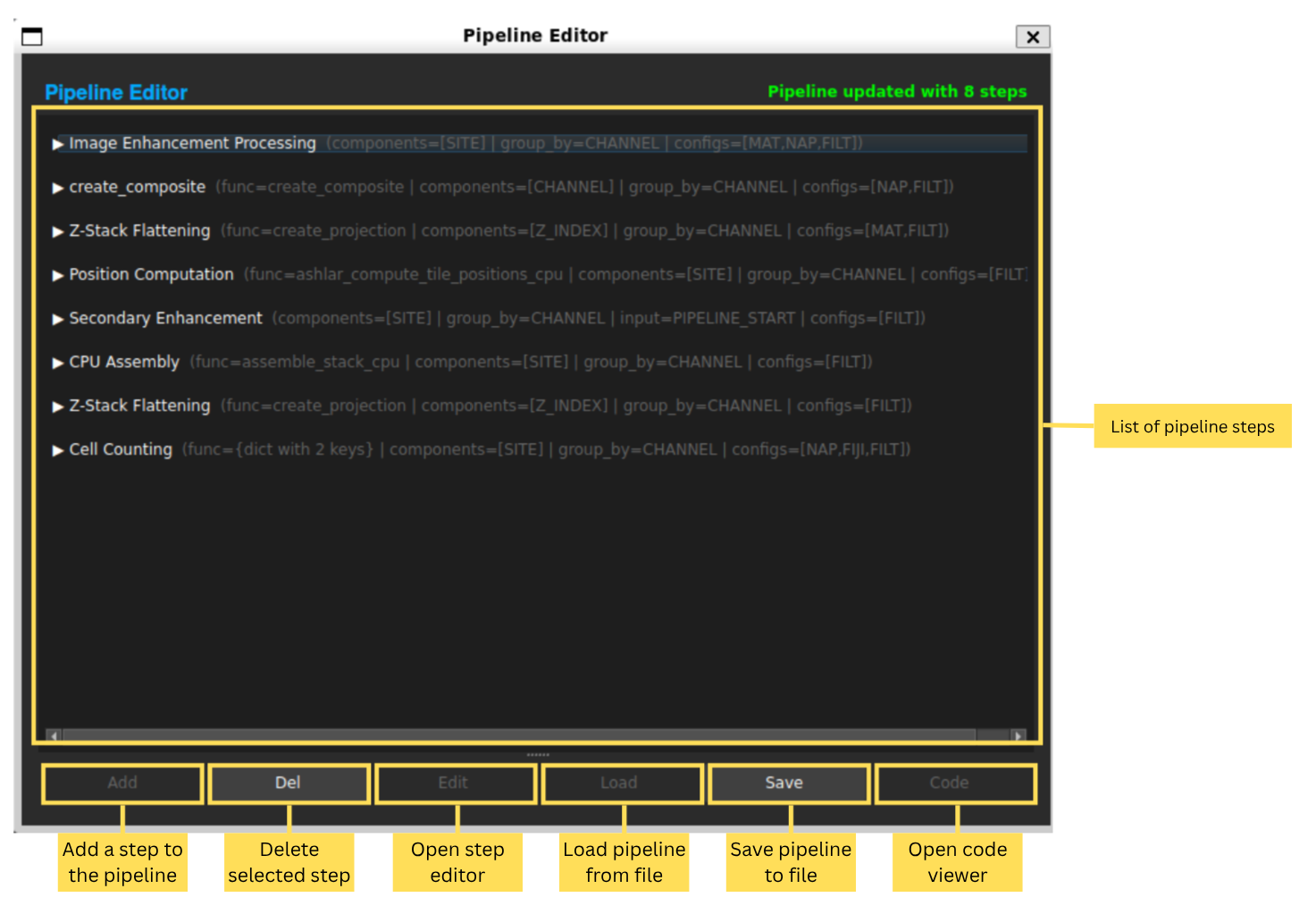
Tip: You can share workflows by clicking the “Code” button and copying the generated code. Anyone else can paste it into their own code viewer and load your pipeline.
Each step can be edited in the steps setting editor. Learn more about this in the Introdutory workflow.
Metadata menu
The Metadata menu has 2 tabs: “Image Browser” and “Metadata”
Image Browser
The Image Browser lets you look at your raw and processed images.
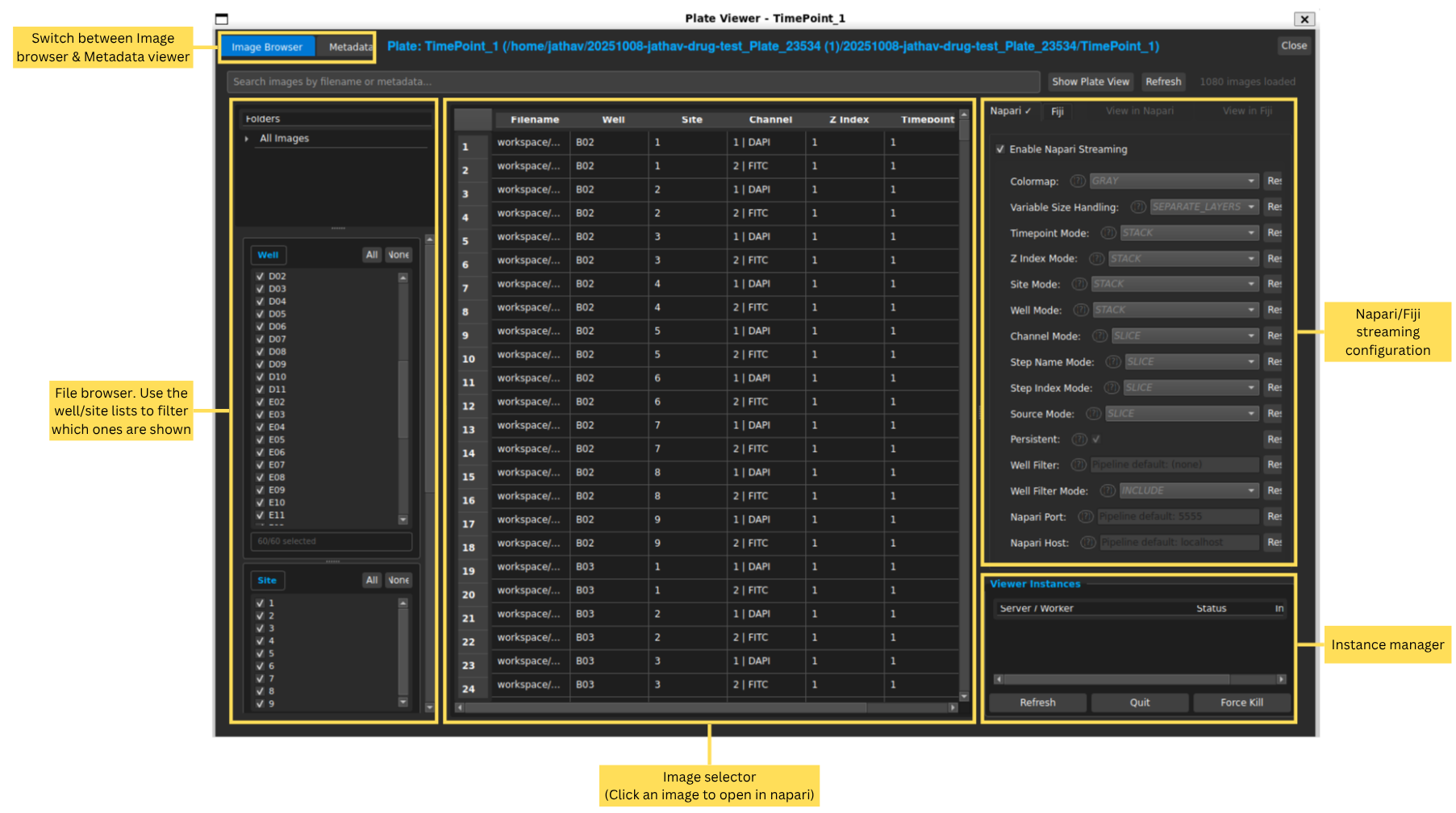
Here, you can explore your images prior to processing, using either Napari or Fiji. Simply double-click on an image to open it in the viewer.
Metadata
The Metadata tab shows information about your images and experiments.
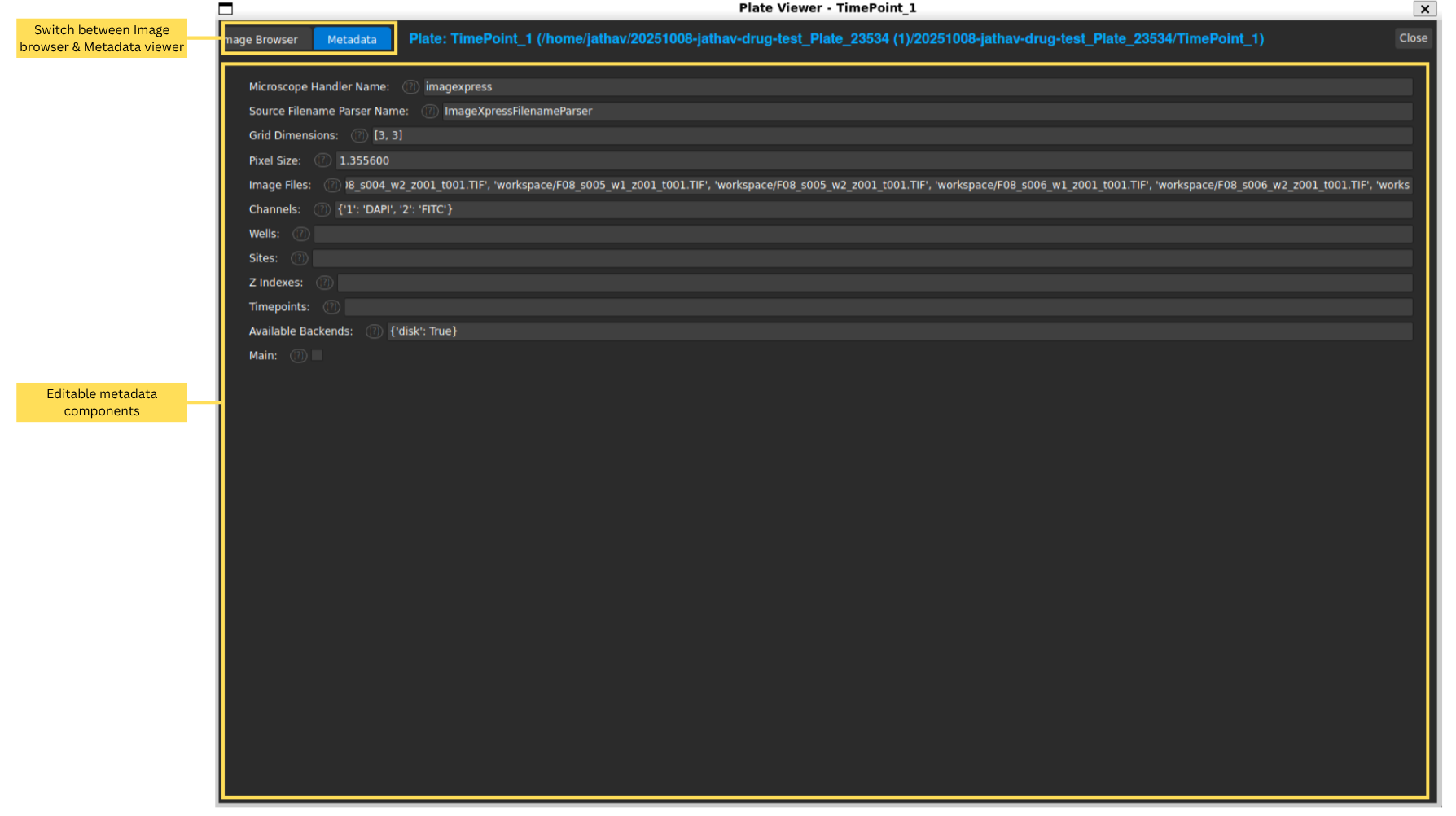
In this tab, you can view and edit metadata associated with your images, such as acquisition settings, experimental conditions, and annotations.
Global Configuration
The Global Configuration menu allows you to set application-wide settings. Configuration Reference explains this in detail.
Conclusion
This guide has provided an overview of the OpenHCS user interface, including the Main Window, Plate Manager, Pipeline Editor, and Metadata menu. With this knowledge, you should be able to navigate OpenHCS effectively and utilize its features for your bioimage analysis needs. For more detailed instructions on specific workflows, refer to the other guides in this series.